When it comes to machine learning, NVIDIA GPUs have long been the go-to choice, largely due to the widespread adoption of their proprietary CUDA platform. However, if you have an AMD GPU or want an open-source alternative, AMD ROCm provides a compelling option.
AMD ROCm is an open-source platform for high-performance GPU computing. It is designed to support machine learning, high-performance computing (HPC), and data science workloads. It offers tools and libraries optimized for AMD GPUs while also enabling compatibility with NVIDIA hardware through its HIP (Heterogeneous-Computing Interface for Portability) framework.
In this post, we will guide you through the following steps to get started with AMD GPUs on Manjaro:
- Install OpenCL and ROCm from AUR.
- Install PyTorch with ROCm support.
- Verify your PyTorch installation.
- Use LMStudio with AMD GPUs for machine learning tasks.
Install OpenCL + ROCm
Using pamac, you can install OpenCL and ROCm from AUR. The currently available version of ROCm in this package is 6.3.1.
You can search for the package:
pamac search opencl-amd-dev
To install the package:
pamac build opencl-amd-dev
It can take some time to install the package.
After the installation, re-open the terminal and run rocminfo to verify if the installation is ok. Something like that is going to be shown:
Name:                    gfx1031
Uuid:                    GPU-XX
Marketing Name:          AMD Radeon RX 6700 XT
Vendor Name:             AMD
Feature:                 KERNEL_DISPATCH
Profile:                 BASE_PROFILE
Float Round Mode:        NEAR
Max Queue Number:        128(0x80)
Queue Min Size:          64(0x40)
Queue Max Size:          131072(0x20000)
Queue Type:              MULTI
Node:                    1
Device Type:             GPU
Cache Info:
  L1:                      16(0x10) KB
  L2:                      3072(0xc00) KB
  L3:                      98304(0x18000) KB
...
As you can see, I’m using an AMD Radeon RX 6700 XT with ROCm.
Install PyTorch with ROCm support
AMD recommends proceeding with the ROCm WHLs available at repo.radeon.com since AMD does not extensively test the ROCm WHLs available at PyTorch.org, as they change regularly when the nightly builds are updated. These specific ROCm WHLs are built for Python 3.10 and will not work on other versions of Python.
Download the WHLs:
wget https://repo.radeon.com/rocm/manylinux/rocm-rel-6.3.1/torch-2.4.0%2Brocm6.3.1-cp310-cp310-linux_x86_64.whl
wget https://repo.radeon.com/rocm/manylinux/rocm-rel-6.3.1/torchvision-0.19.0%2Brocm6.3.1-cp310-cp310-linux_x86_64.whl
wget https://repo.radeon.com/rocm/manylinux/rocm-rel-6.3.1/pytorch_triton_rocm-3.0.0%2Brocm6.3.1.75cc27c26a-cp310-cp310-linux_x86_64.whl
Then, install the WHLs using pip or your dependency manager:
# using pip
pip3 install torch-2.4.0+rocm6.3.1-cp310-cp310-linux_x86_64.whl torchvision-0.19.0+rocm6.3.1-cp310-cp310-linux_x86_64.whl pytorch_triton_rocm-3.0.0+rocm6.3.1.75cc27c26a-cp310-cp310-linux_x86_64.whl

# using uv
uv add torch-2.4.0+rocm6.3.1-cp310-cp310-linux_x86_64.whl torchvision-0.19.0+rocm6.3.1-cp310-cp310-linux_x86_64.whl pytorch_triton_rocm-3.0.0+rocm6.3.1.75cc27c26a-cp310-cp310-linux_x86_64.whl
Verify PyTorch with ROCm installation
Create a .py script with the following code:
import torch

print(f"Is Available: {torch.cuda.is_available()}")
print(f"Device name: {torch.cuda.get_device_name(0)}")
Execute:
uv run main.py
Expetected result:
Is Available: True
Device name: AMD Radeon RX 6700 XT
Using LMStudio with AMD GPUs
Download LMStudio at https://lmstudio.ai/. After downloading, open LMStudio
cd Downloads
chmod a+x LM-Studio-0.3.6-8-x64.AppImage
./LM-Studio-0.3.6-8-x64.AppImage
To verify if LMStudio detected your AMD GPU, go to App Settings/System Resources. On the Right box, you can see that my RX 6700 XT was detected.
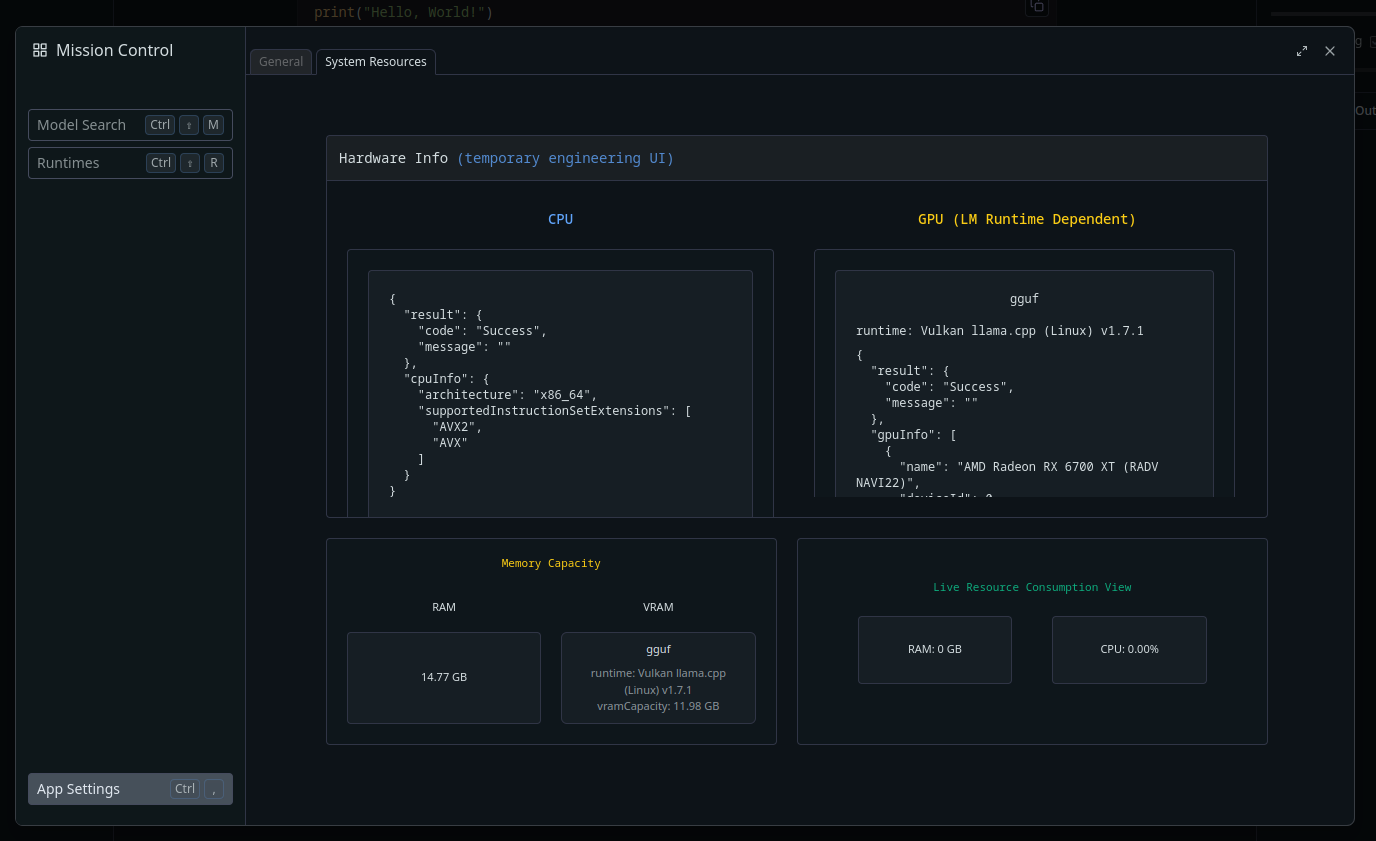
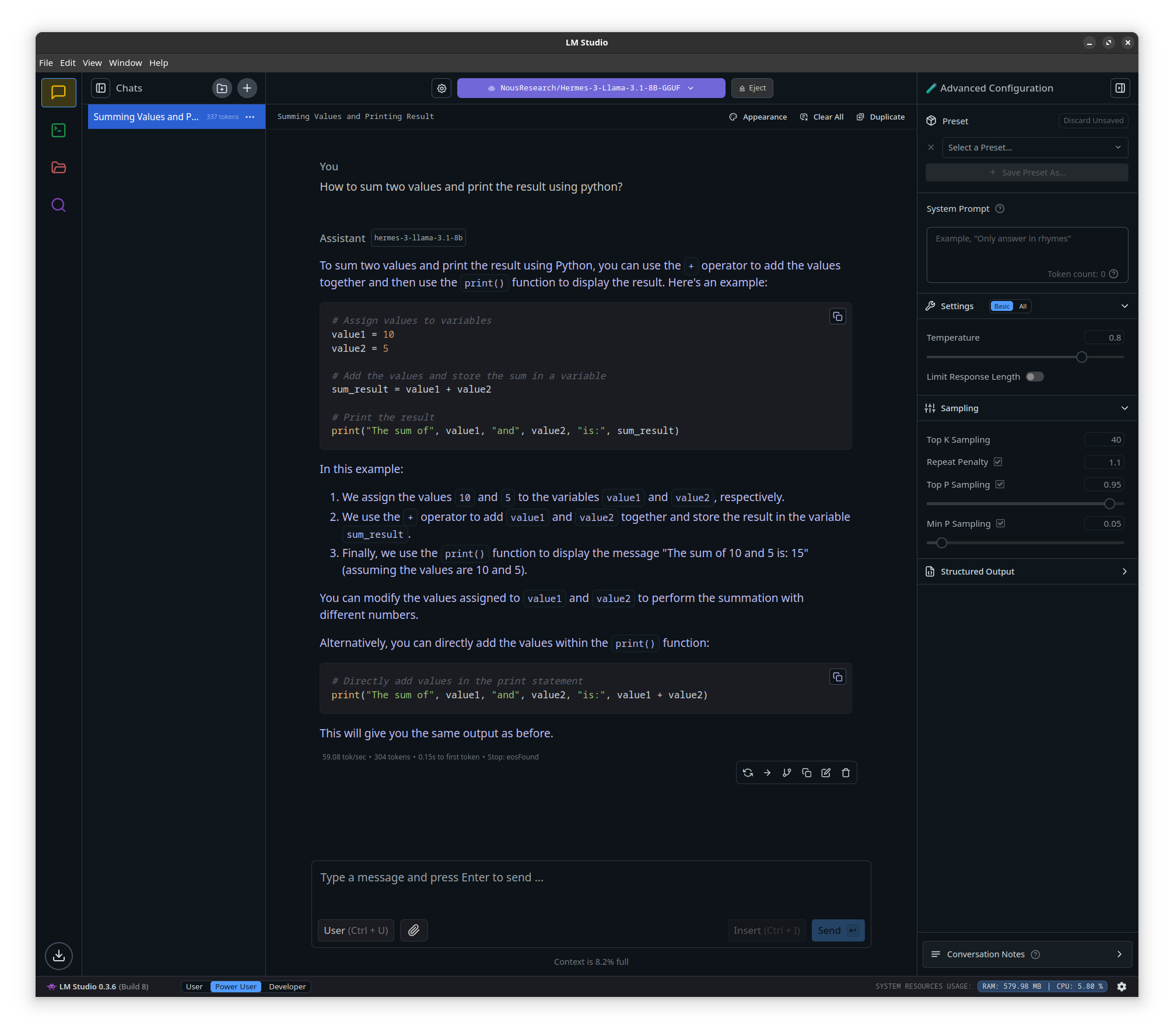
You can now download some models, load them, and test them.
Using ollama
To use ollama 0.5.7, install as specified in the Ollama documentation.
curl -fsSL https://ollama.com/install.sh | sh
Now you can run models locally by executing the command below. To see all models available, go to Ollama models.
ollama run llama3.2
Sometimes, the model is not loaded at the GPU. In my case, it was necessary to set the HSA_OVERRIDE_GFX_VERSION variable in Ollama settings. This variable is used to manually specify the HSA and GFX versions for GPU operations.
nvim /etc/systemd/system/ollama.service
Set the variable
Environment="HSA_OVERRIDE_GFX_VERSION=10.3.0"
Restart Ollama service
sudo systemctl daemon-reload && sudo systemctl restart ollama.service
Conclusion
Completing these steps will allow you to set up your AMD GPU for machine learning and related tasks using ROCm. This open-source platform provides the tools and libraries to utilize your hardware in various computational workflows effectively.
Thanks for reading :)